Flood Extent Mapping Tutorial
Service Summary
This service focuses on detecting floods over a period around a specific date (event start date) in a specific Area of Interest (AOI) defined by the user; it uses SAR and Optical Flood Extent Detection processors developed by CIMA Foundation. The user specifies an AOI and sets the start date of the flood event. A default observation/acquisition period is applied automatically, but it can be adjusted as needed. The service automatically searches pre- and post-event Sentinel-1 images with the same geometry and post-event Sentinel-2 images covering the AOI. The service extracts the Land Cover map and Water Bodies map in the same area and triggers the execution of the SAR Flood Extent Detection and Optical Flood Extent Detection for each satellite image found. As a result, flood extent maps are generated for each observation and a maximum extent map is provided as the cumulative sum of these maps.
The Flood Extent Mapping App
Select the Flood Extent Mapping Service App in the marketplace:
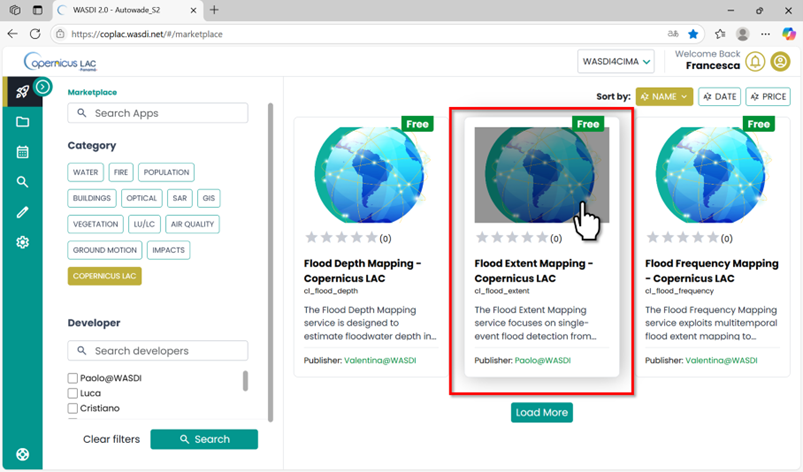
Flood Extent Mapping App in the CopernicusLAC Specialized PE Marketplace
Open the application:
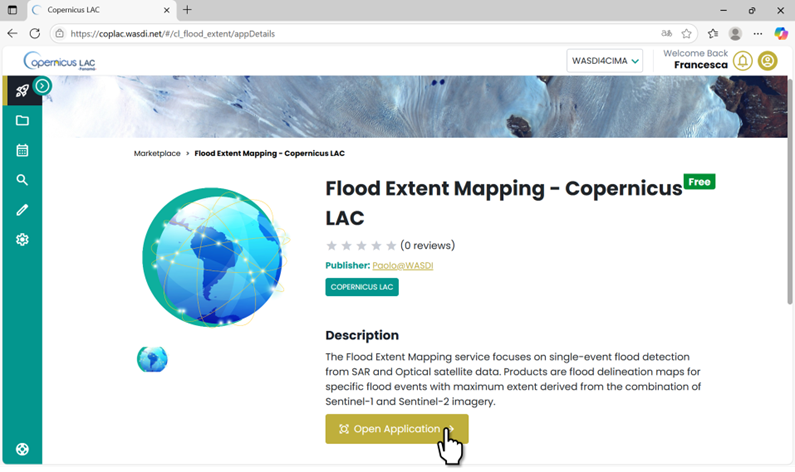
FEM App in the CopernicusLAC Specialized PE Marketplace. Open Application
FEM Application Menu
Every app has its Main Menu on the left side of the user interface. This is where you can access different tabs to configure parameters for running the app.
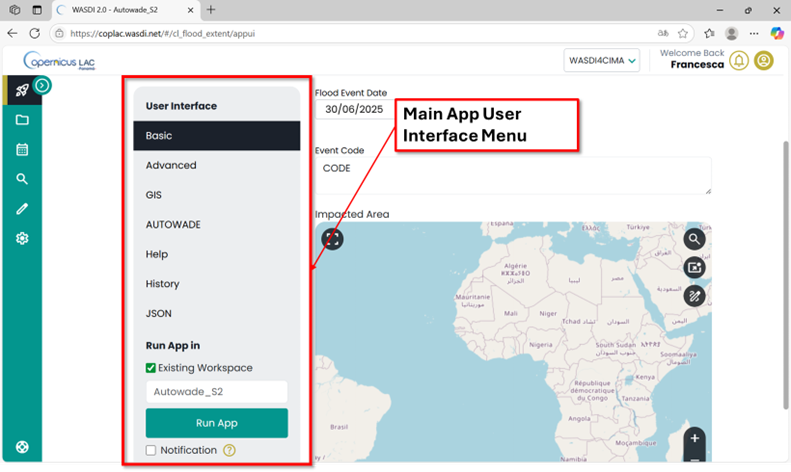
Flood Extent Mapping Service User Interface
To begin, scroll to the bottom of the Main Menu and:
Select whether to run the app in a new workspace or an existing one.
If you select Existing Workspace, a dropdown menu will appear, allowing you to choose from the workspaces you’ve already created.
If you choose New Workspace, you can either assign a custom name or let the system automatically generate one for you [Automatic Name].

Main menu of the FEM app. Select if you want to run the app in a new workspace or in an existing one
Basic
Fill Basic parameters (required as mandatory to run the app)
Flood Event Date: Date when the flood event started. Post-event images will be searched starting from this date onward.
Event Code: Prefix to use to name output files. Do not use underscore.
In the Impacted Area draw the area in which you want to make your analysis, e.g over the Mojana Region in Colombia.
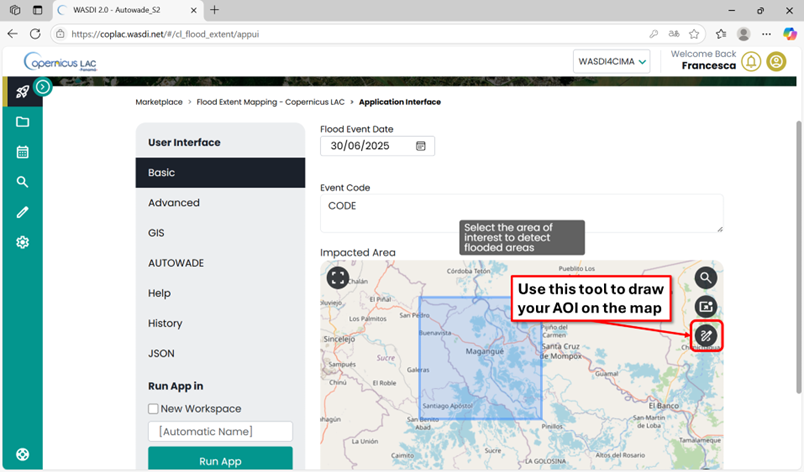
Basic parameters to set to run the FEM app
Advanced
In the Advanced Parameters section, you’ll find additional settings that can be modified by expert users. These parameters are not mandatory to run the app. The following options are available:
Days to search pre-event: Number of days before the Flood Event Date to search for pre-event images (excluding the Flood Event Date). Default: 20 days
Days to search post-event: Number of days after the Flood Event Date to search for post-event images (including the Flood Event Date). Default: 20 days
Delete: Keep this option selected to delete intermediate files. Deselect it if you want to retain all intermediate files.
Apply permanent water: The algorithm includes permanent water computation by default. Enable this option if you want to explicitly apply it to the output using a reference thematic layer.
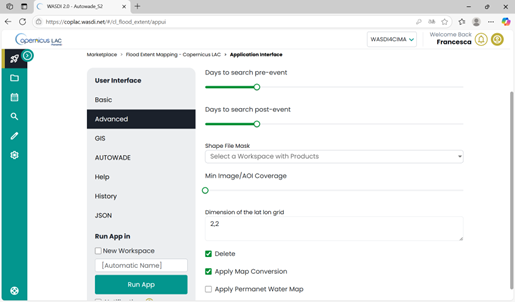
FEM App – Advanced Parameters
AUTOWADE
In the AUTOWADE tab, you can choose to run flood mapping using both SAR and optical data.
To enable this, select the “Run Optical Detection” option.
When this option is checked, the Flood Extent Mapping App will automatically launch both the autowade_S1 (SAR-based) and autowade_S2 (optical-based) processing workflows.
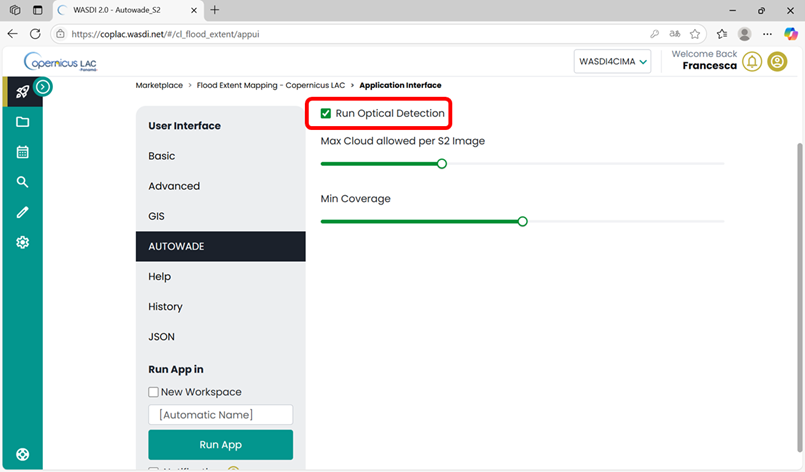
FEM App – AUTOWADE tab with parameters for enabling optical flood mapping
In this section, you can set parameters to refine the search for images used in the application. The parameters you can adjust from their default values include:
Max Cloud Allowed per S2: Specifies the maximum cloud coverage allowed for Sentinel-2 optical images to be considered in the analysis.
Min Coverage: Defines the minimum percentage of a Sentinel-2 image that must cover the area of interest to be included.
Once all parameters are set, click the “Run App” button in the Main Menu. The platform will automatically redirect you to the workspace you selected—either an existing one or the newly created workspace.
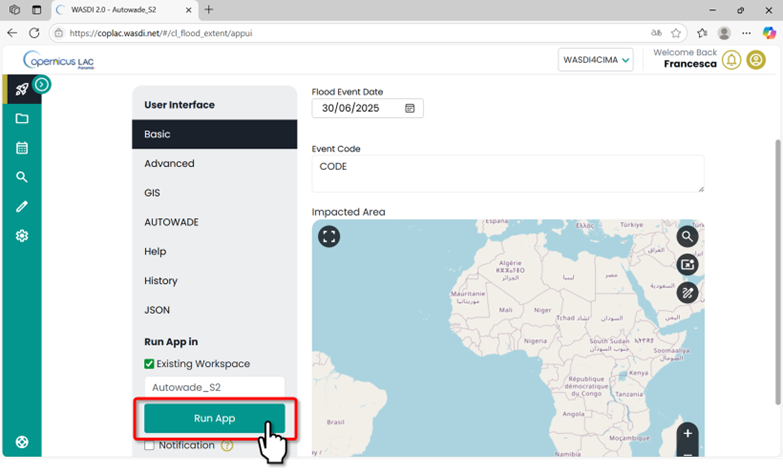
FEM Service: Run App after setting parameters
In the workspace where the app is running, you can check at any time the status of its execution by clicking on the arrow at the bottom-right corner.
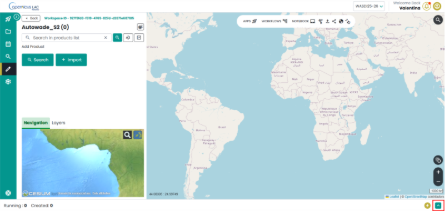
CopernicusLAC Specialized PE workspace view – check status of the apps
“Created”, “Running”, “Ready” or “Waiting” states indicate that the application is still in its execution phase. “Done”, “Error” or “Stopped” states represent that the execution of the application has ended.

CopernicusLAC Specialized PE workspace view - Details about the execution of an app
Output, data visualization and download
The service will produce as output the following GeoTIFF:
Flood extent map: one map for each day with a valid SAR image. Called [CODE]_[DATE]_flood (Legend 1)
SAR max extent (Maximum extent of all flood maps from Sentine-1), called [CODE]_[DATE]_sar_flood_sum_days[TOT] (Legend 1)
Optical flood composite, called [CODE]_[DATE]_s2_flood (Legend 1)
SAR and Optical Max extent map, called [CODE]_[DATE]_flood_sum_days[TOT] (Legend 1)
Comparative optical and SAR flood map. called [CODE]_[DATE]_frisk[DAYS] (Legend 2)
Legend 1:
0 - No data
1 - No flood
2- Permanent water
3 - Flooded areas
Legend 2:
0 - No Data
1 - No Flood
2 - One Map flood, the other oe not flood
3 - One Map flood, the other one no data
4 - Both Maps flood
5 - Permanent water
How to display data in your workspace in the Specialized PE?
Find your layer of interest in your workspace, expand the selection and toggle on the layer of interest and click on the lightbulb icon.
The selected layer will be displayed on the map, and the product should appear in the list of products in the Layer panel.
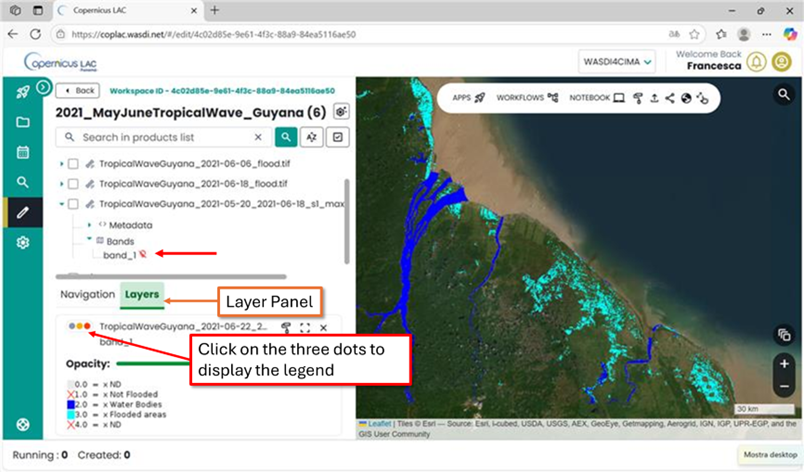
CopernicusLAC Specialized PE map visualization
How to download data from your workspace in the Specialized PE?
Access your CopernicusLAC Specialized PE workspace
Find your layer of interest in your workspace and select it. The download option will appear on top the layer list.
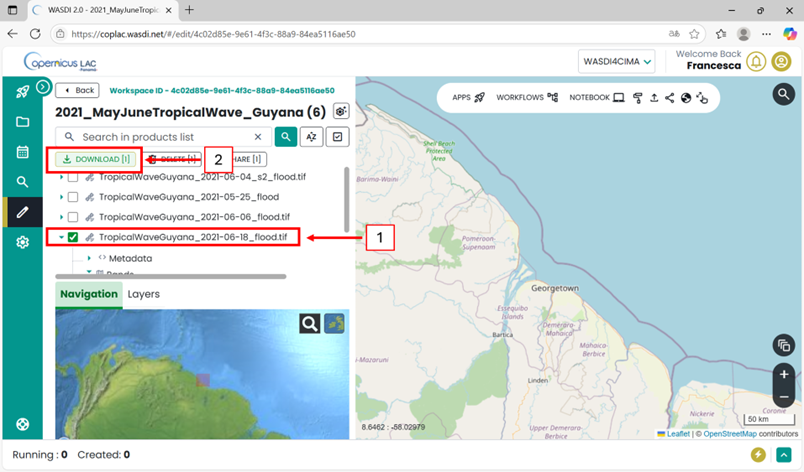
CopernicusLAC SpecializedPE data download